
Сфотографируйте чек, а система сама прочитает сумму
Учет расходов с помощью сканирования чеков
Чеки, скапливающиеся в бардачке, ждут ручного ввода в конце месяца. Сканирование чеков сокращает этот шаг: сумма, дата и продавец считываются автоматически, а вы их подтверждаете. Мы рассказали, как это работает и каковы ограничения.
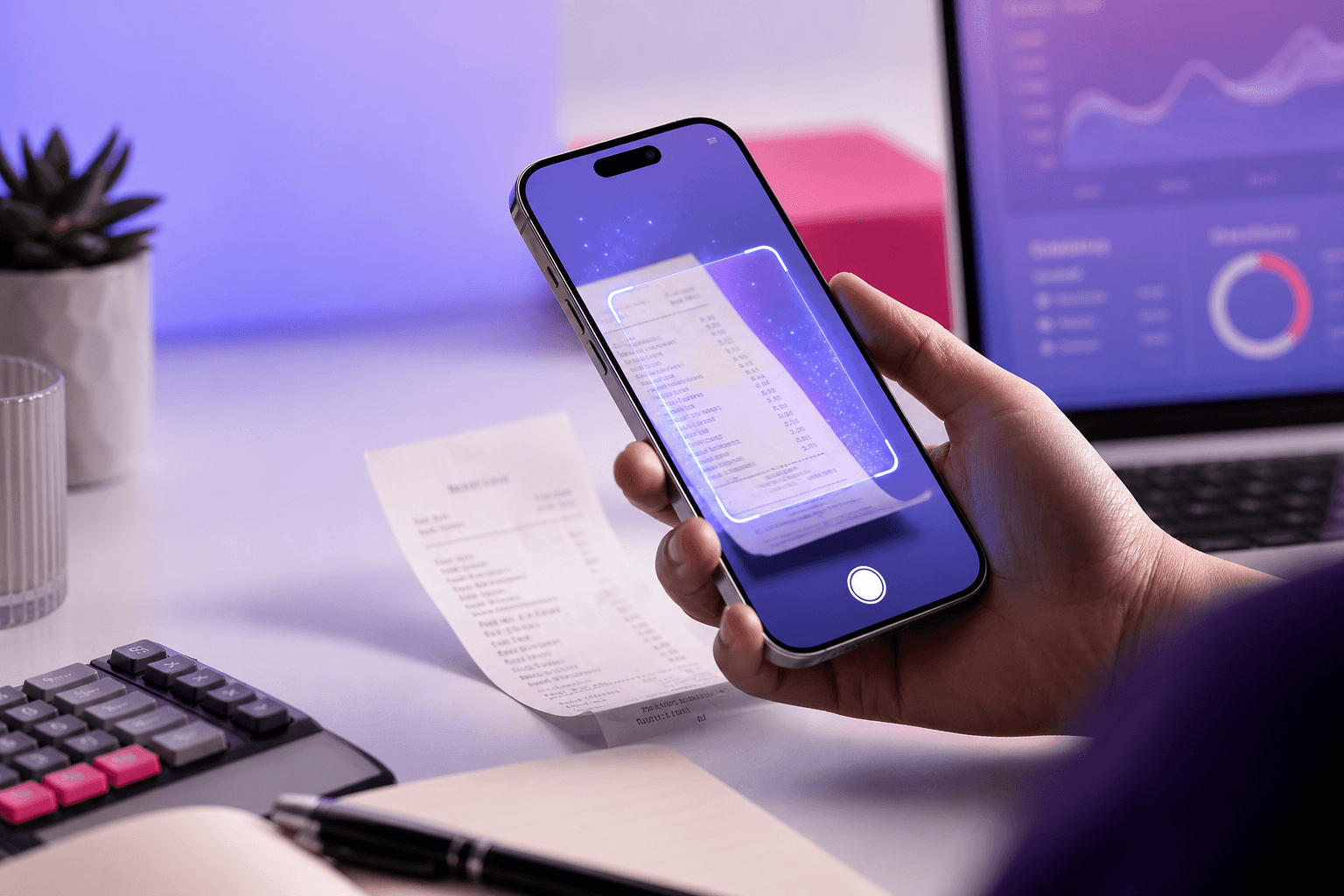
Чеки собираются по карманам, сумкам и бардачкам. В конце месяца всё это вываливается на стол и вносится по одному. У половины текст уже стерся, несколько штук потерялись.
Проблема на самом деле не во вводе чеков, а в их откладывании на потом. Чек, записанный в день траты, отнимает секунду, а чек трехнедельной давности превращается в настоящую археологическую раскопку.
Как это работает?
- Сфотографируйте чек или загрузите его в формате PDF. Это можно сделать и с телефона.
- Система распознает изображение и извлечет данные о сумме, дате, НДС и продавце. Этот процесс занимает всего пару секунд.
- Распознанные данные появляются перед вами. Вы проверяете их и при необходимости корректируете.
- После подтверждения создается запись о расходе, а изображение чека сохраняется в качестве приложения к ней.
Последний пункт важнее, чем кажется: даже если физическая копия чека выцветет или потеряется, ее изображение останется в базе. Отпадает необходимость копаться в папках.
Не пропускайте этап подтверждения
Распознавание чеков работает хорошо, но не идеально. Вероятность ошибок возрастает на помятых, выцветших чеках или снимках при плохом освещении.
Именно поэтому алгоритм построен не по принципу «прочитай и сохрани», а «прочитай, покажи, подтверди». Девяносто процентов точности без подтверждения означают десять процентов ошибочных записей расходов — и эта ошибка отразится вплоть до суммы НДС.
Чтобы повысить качество распознавания: положите чек на ровную поверхность, избегайте теней и убедитесь, что он полностью попал в кадр.
Расходуются кредиты Qolay
Поскольку для распознавания чеков используется искусственный интеллект, тратятся кредиты Qolay. Каждой новой компании бесплатно предоставляется 100 кредитов; для начала работы ничего дополнительно покупать не нужно.
Когда кредиты закончатся, сканирование работать перестанет, но вы сможете продолжать вводить расходы вручную. О том, как это работает, мы рассказали в статье о кредитах Qolay.
Расход записан, а что с оплатой?
Большинство расходов уже оплачено наличными или картой. Ввод расхода и отдельное оформление платежа создают двойную работу, и вторую часть часто забывают — после чего касса не сходится.
Регистрация расхода и оплаты в один шаг закрывает этот пробел; подробности описаны в статье «Оплата расходов в один шаг при регистрации».
Часто задаваемые вопросы
Какие форматы файлов поддерживаются?
Популярные графические форматы и PDF. Также можно загружать цифровые чеки в виде скриншотов.
Распознает ли систему чек с выцветшим текстом?
Может и не распознать. Бумага термочеков со временем выцветает, поэтому самый надежный способ — сфотографировать чек в тот же день.
Нужно ли хранить оригинал чека?
Обязанность по хранению документов сохраняется. Проконсультируйтесь с вашим налоговым консультантом относительно достаточности цифровой копии, однако изображение в системе в любом случае облегчает вам поиск и проверку.
Могу ли я сделать массовую загрузку?
Вы можете загрузить несколько чеков, но каждый из них требует отдельного подтверждения. Это сделано намеренно: массовое подтверждение означает массовый пропуск ошибок.
Главная польза сканирования чеков — не скорость, а избавление от привычки откладывать дела на потом. Если вы регистрируете трату прямо на месте, проблема конца месяца просто исчезает.
Создайте бесплатный аккаунт в Qolay.App и отсканируйте свой первый чек уже сегодня.
Похожие статьи
Другие материалы по этой теме.

Как отразить расходы на персонал в предварительном бухгалтерском учете?
Зарплата, премии и авансы по отдельности
Выплата зарплаты — это не одна строка. Мы рассказали, как отдельно фиксируются чистые выплаты, взносы SGK и зачет авансов, а также как они сопоставляются с кассой и банком.

Учет комиссий и удержаний маркетплейсов
Почему сумма на вашем счете оказалась меньше
Разница между суммой продаж и поступившими на счет деньгами складывается из комиссий, расходов на доставку и возвратов. Мы рассказали, как отражать эти статьи в учете.

Расходы на доставку и управление возвратами
Возвраты незаметно съедают прибыль
Прибыль от товара с высоким процентом возвратов остается только на бумаге. Мы рассказали, как отслеживать расходы на доставку и возвраты.